Find a part. Check the details. Bring it into your design.
Search Values, packages & categoriesImport Symbol, footprint & companion filesSimulate Local SPICE model mapping
ONE CONCRETE WORKFLOW
Select an N-channel MOSFET.
Narrow the selection. Open the N-channel MOSFET category. Filter by voltage rating and your required voltage margin, on-resistance and package. Results depend on the values present in your local data.
Check gate-drive conditions. Compare the gate voltage specified for RDS(on), not just the threshold voltage. Review the datasheet, symbol and footprint before choosing a candidate.
Use it in KiCad. Copy its library reference, select it in KiCad and verify the footprint. Assign a local SPICE model when you need simulation.
QUICK START · WINDOWS BETA 1
Download. Set up. Start designing.
The complete Windows package includes the application and a separate starter library database. Your own additions stay local.
Choose the Windows ZIP under Release assets. GitHub’s “Code → Download ZIP” contains source code without the library database. Do not run inside the ZIP or move the folder after setup.
02
Start the application
Double-click Start-KiCad-Parts-Manager.cmd. First setup creates a separate Python environment and downloads dependencies. Keep the startup window open while the library is prepared; the browser opens the local application.
Use Chrome or Edge for the tested clipboard workflow. The app runs on 127.0.0.1 on your computer, not on this website.
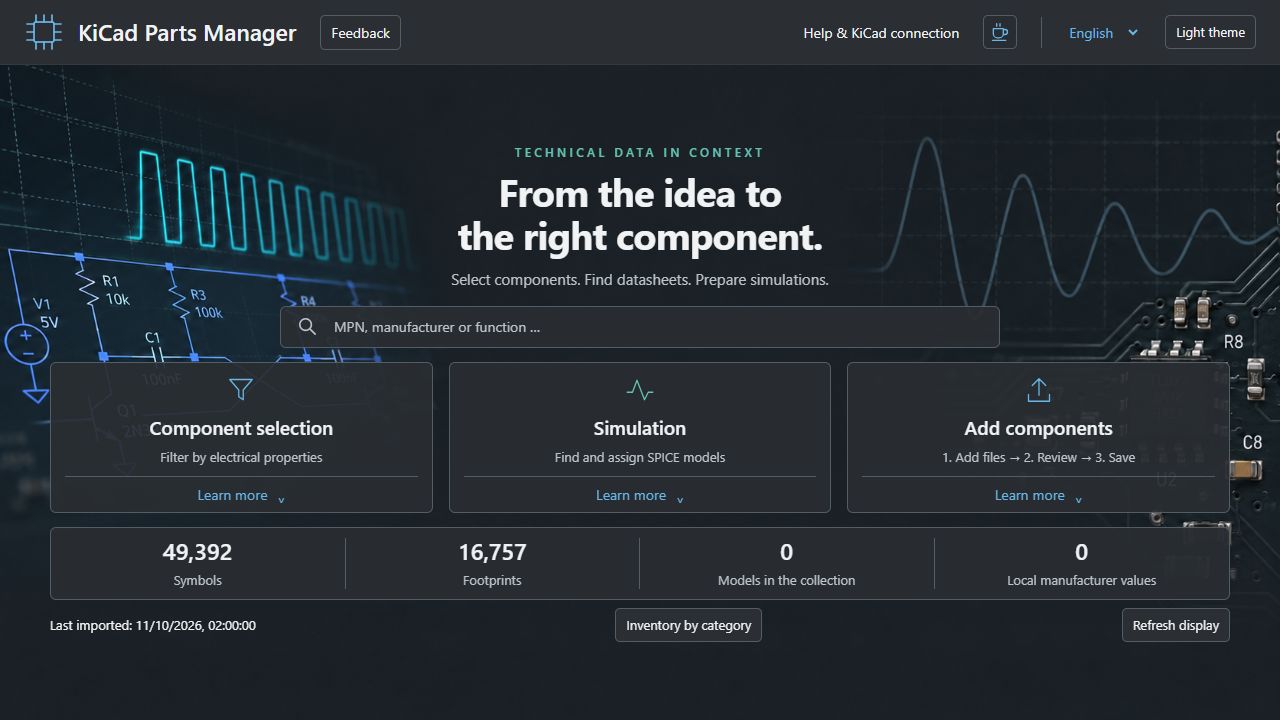
Choose Component selection to search, Simulation for models, or Add components to import files. Click the header language selector for English or German.
03
Connect your KiCad project
Close KiCad, run Setup-CERN-KiCad.cmd from the complete Windows package and select your KiCad project folder. Reopen that project and check that the expected libraries are available. The setup uses project library tables; global tables remain unchanged.
CERN database libraries additionally require a matching SQLite3 ODBC driver. Installing Python, KiCad or ODBC may require administrator rights; the app’s local environment and desktop shortcut do not.
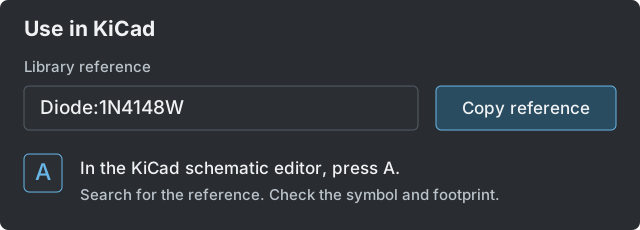
Select a part in the app, copy its library reference and search for it in KiCad’s symbol chooser. If clipboard access is denied, use Ctrl+C on the selected reference. Verify the symbol and assigned footprint before placement.
Illustration: copy a library reference, then find it in KiCad using A. Click to enlarge.
04
Find a part — or bring your own files
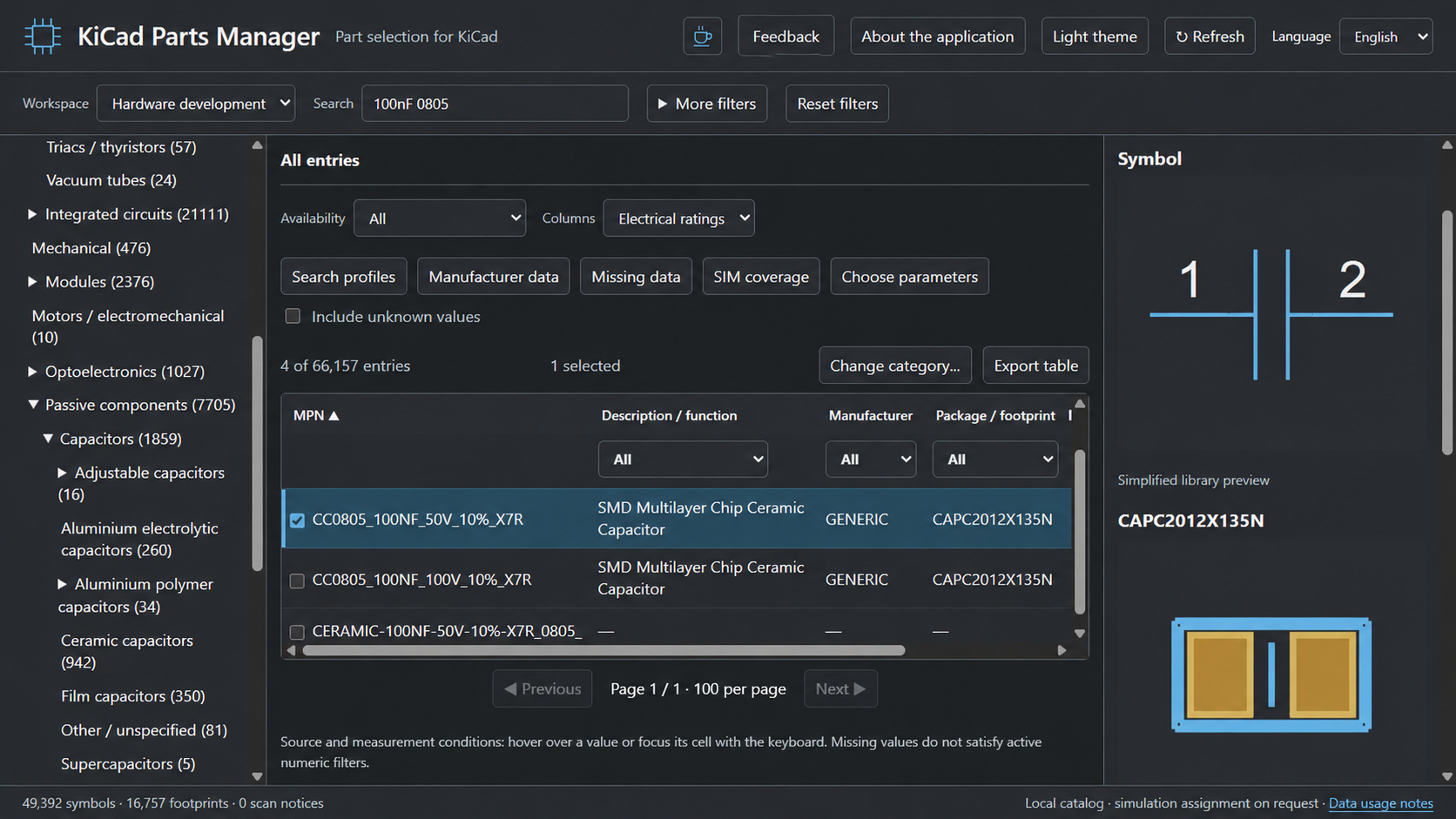
Try 100nF 0805 or 10mR 2W. Search terms work in any order; matches depend on the parameters and files present in your database. Use categories and electrical filters to refine the result.
For a new component, open Add components. Drop a ZIP or supported symbol, footprint, PDF, STEP/WRL and SPICE files. Review the previews, manufacturer, proposed category and parameters. Choose whether to supplement an existing part or replace selected information. Save only after checking the proposed changes.
Optional companion files can be missing. Check warnings, unresolved links and duplicate matches rather than assuming every imported file has been assigned correctly.
Open a category, select a candidate and inspect its symbol and footprint. Click to enlarge.
05
Prepare a simulation
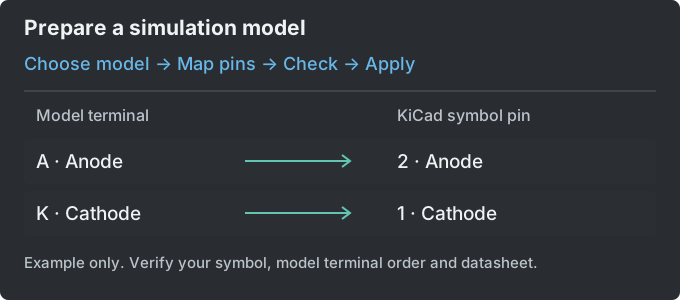
Select or import a local SPICE model, inspect its model terminals and map them to the symbol’s numbered pins. Consult the datasheet when the mapping is unclear. Review test settings and run the available calculation check where supported.
Save the intended mapping, place the component in a suitable KiCad test circuit and run KiCad’s simulator. KiCad can use its bundled ngspice library; the app’s optional calculation check may need a separate ngspice console executable.
A model match or successful calculation does not confirm electrical accuracy. Check pin mapping, model compatibility, test conditions and 3D placement yourself.
Illustrative diode example: review each model terminal against the symbol pin. Your model may use a different terminal order. Click to enlarge.
06
Restart, update & uninstall
Run Desktop-Verknuepfung-erstellen.cmd once to create a desktop shortcut. After closing the browser, reopen through that shortcut or the same Start CMD. You do not need to reinstall.
Before an update: back up your own data and extract the new package into a separate folder. Do not overwrite your database with the new starter database. Automatic conflict-aware merging is not available in this Beta.
To uninstall: back up your data, close KiCad and stop the app’s server with Ctrl+C in its terminal. Run Deinstallieren.cmd, review the affected installation and enter DEINSTALLIEREN to confirm. It removes the app environment and its shortcut while retaining data, libraries, models and backups. Python, KiCad and ODBC stay installed.
BEFORE YOU START
Useful. Local. Still a Beta.
Designed to help with selection and library maintenance. Engineering decisions still need engineering checks.
What is included?
66,149 catalog entries from CERN, KiCad, SparkFun, DigiKey, DigiKey Partner and Seeed: symbols/parts and standalone footprints, plus separate synthetic examples. The maintainer’s private database is excluded. These entries are not a promise of complete electrical parameters or SPICE coverage.
Does it work on Linux?
Linux is experimental and has not passed full acceptance testing. This download is the Windows Beta. Tested configurations and limitations are documented in the repository.
What are the current limits?
Some upstream footprint references are missing and some categories are broad. There is no live price/stock feed, runtime AI assistant or automatic merge of updated data packages. Check electrical values, model suitability and 3D placement against original sources.